UX Best Practices That Actually Ship (Not Just Look Good)

I’ve seen plenty of UIs that looked great in a Figma walkthrough and then confused users in production. The shift for me was treating UX as “what happens after the first click”—reducing confusion and friction, not just impressing in a review. Real-world cases drive the point home: a single broken form field has been blamed for millions in lost checkout revenue; cart abandonment often jumps when shipping costs or payment options appear too late or in the wrong place. Once I started checking every screen against a simple “can someone do the main thing in under 30 seconds?” test, quality went up without adding more polish.
UX best practices only matter if they make it into the product and improve outcomes. This guide focuses on objective, shippable habits: clarity of hierarchy, reducing steps, learning from real failure cases, testing with real tasks, and avoiding the demo trap.
Put Clarity Before Aesthetics

The first job of a screen is to answer “what can I do here?” and “what’s most important?” If users have to hunt for the primary action, the layout has failed—no matter how pretty it is.
Objective checks:
- One primary action per view (or a clear order: primary → secondary).
- Headings and labels that describe the screen and the next step.
- Contrast and hierarchy so important elements stand out without relying on decoration.
Trade-off: “clean” can become “empty.” Clarity doesn’t mean removing everything—it means making the right thing obvious.
Concrete example: On a signup flow, the primary action should be “Create account” or “Continue”—one button, above the fold. If “Learn more,” “Log in,” and “Sign up” have the same visual weight, users hesitate. A simple test: can someone say “the one thing I should do here” in under 5 seconds? If not, hierarchy needs work.
Real Cases: When Clarity and Friction Went Wrong
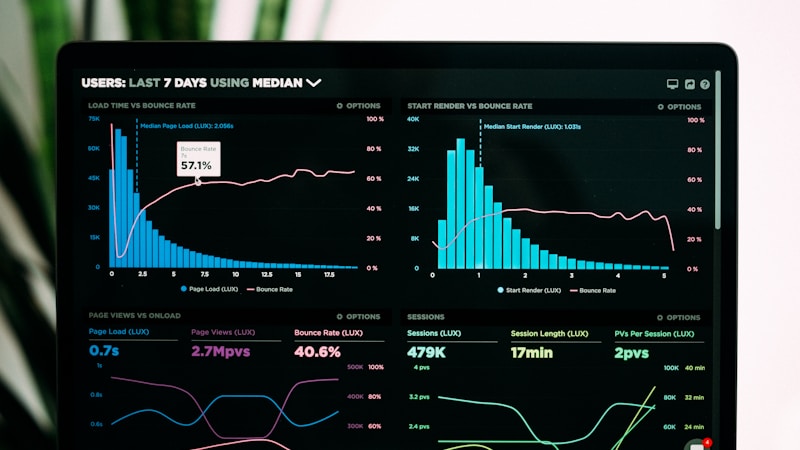
Real failure cases show how small UX choices add up. They’re well-documented in case studies and session replay data.
Checkout and form failures: In one reported e-commerce case, a mobile app with millions of monthly users had a 31% checkout completion rate. Session replay showed users repeatedly tapping a “Card Number” field that didn’t respond properly—analytics showed drop-off but didn’t reveal the broken interaction until video replay was used. Fixing that single field and related payment UX can recover significant revenue when average order value is high. In other cases, cart abandonment jumped (e.g. from 68% to 79% after a redesign) when shipping costs appeared for the first time at the final payment step, or when preferred payment methods (e.g. Apple Pay, PayPal) weren’t available. Information hierarchy and “what appears when” directly affect completion.
Takeaways: Show costs and options early; ensure every critical input actually works on the devices and browsers you support; and use session replay or real-user testing to find failures that analytics alone miss. For product teams, the lesson is the same: one primary action per screen, clear labels, and no critical information hidden until the last step.
Reduce Steps for the Core Journey
Every extra step loses users. Map the main path (sign up, complete order, submit form) and remove or combine steps until you have the minimum needed.
Practical rules:
- Combine screens when the same user could do both in one place.
- Pre-fill and remember when data is known or repeatable.
- Progressive disclosure — Show advanced options only when needed.
If a flow “feels long,” count the clicks and form fields. Often one or two steps can be collapsed without losing necessary checks.
Quick UX audit checklist (run on your main flow):
- Primary action — Is there exactly one main CTA per screen, and is it obvious?
- Step count — How many screens or clicks from entry to “value delivered”? If it’s more than 5, look for steps to combine or skip.
- Pre-fill — Are you asking for data you already have (e.g. email from SSO, address from a past order)?
- Progressive disclosure — Are advanced options hidden until needed, or cluttering the main path?
- Real-user test — Have at least one person (not on the team) complete the flow while you watch; note every pause or misclick.
Test With Real Tasks, Not Opinions

Internal feedback is useful, but it’s not a substitute for watching someone complete a real task. Even a few sessions surface confusion you didn’t expect.
Objective testing habits:
- Give a task, not a tour — e.g. “Sign up and add your first item.”
- Don’t guide during the session—observe where they hesitate or fail.
- Fix the top blockers before adding new features.
You don’t need a lab. A quiet call with screen share and a clear task is enough to improve the next iteration.
When to run a test: Before a big launch, after a redesign of a critical flow (checkout, onboarding, core action), or when analytics show a sudden drop in completion. Five users are often enough to find the main issues; session replay can then help you see how widespread the problem is.
Design for Maintenance, Not Just Launch

UX that “ships once” often degrades as content and features grow. Plan for consistency and updates from the start.
Practical habits:
- Reusable components and tokens (spacing, type, color) so new screens stay consistent.
- Content guidelines so copy and imagery don’t break the layout or tone.
- Document the “why” for key flows so future changes don’t accidentally break the experience.
Summary: The best UX practices are the ones that make the core journey clear, short, and testable. Prioritize clarity over aesthetics, reduce steps on the main path, learn from real failure cases (checkout, forms, hierarchy), validate with real tasks, and design so the experience holds up after launch. For keeping new screens consistent without big-team overhead, see our design systems guide for small teams.
If you take one thing: design for the moment after the first click. That’s when users decide whether to stay or leave—and that’s where small, objective improvements compound.
FAQ
Q. We don’t have a dedicated UX researcher. How do we test with “real” users?
You don’t need a lab. Recruit 3–5 people who match your target user (friends, beta signups, or a small incentive). Give them one concrete task (“sign up and add your first item”), don’t guide them during the session, and note where they hesitate or fail. Fix the top 2–3 blockers before adding new features.
Q. How do we avoid designing for the demo instead of daily use?
Define the “main thing” per screen: the one action that matters most for your success metric. If a feature doesn’t support that action, it’s secondary. Test with a 30-second rule: can someone do the main thing in under 30 seconds? If not, simplify before adding more.
Q. What’s the fastest way to find why our checkout or signup is dropping off?
Use session replay or similar tools on the step where analytics show the biggest drop. Look for repeated taps on non-responding elements, rage clicks, or long hesitations. Combine that with a few live task-based tests to confirm the cause before redesigning.
Q. How many users do we need for a usability test?
Often 5 is enough to surface the main usability issues. More users help with confidence and edge cases, but the biggest wins usually show up in the first few sessions. Run tests early and iterate rather than waiting for a large sample.
Q. Our metrics got worse after a redesign. What should we check first?
Check information hierarchy and step order: did you hide costs, options, or critical info until later? Are all interactive elements actually working (especially on mobile)? Run 3–5 real-user sessions and watch where people stall or drop; then use session replay to see how widespread it is.
Related keywords
- UX best practices that ship
- checkout abandonment UX
- form design clarity hierarchy
- real user testing small team
- design for conversion not demo
- reduce signup friction
- UX failure case study
- primary action per screen